
Aeneis app for Teams
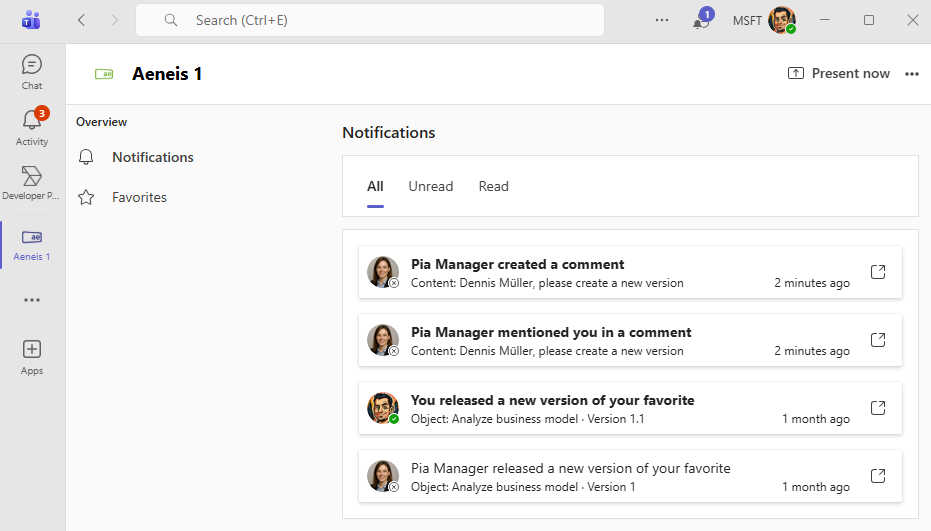
You can integrate Aeneis as an app in Microsoft Teams. This allows you to track your notifications from the Portal and your favorites in real time, even if you are not currently logged into Aeneis.
Notifications
In the Notifications section of the Aeneis app for Teams, you can see all notifications as soon as they are triggered in Aeneis. They are automatically removed as soon as they are no longer visible in the Portal header. You can use the tabs to view read and unread notifications separately. Click on  in a card to go directly to the relevant trigger in the Portal.
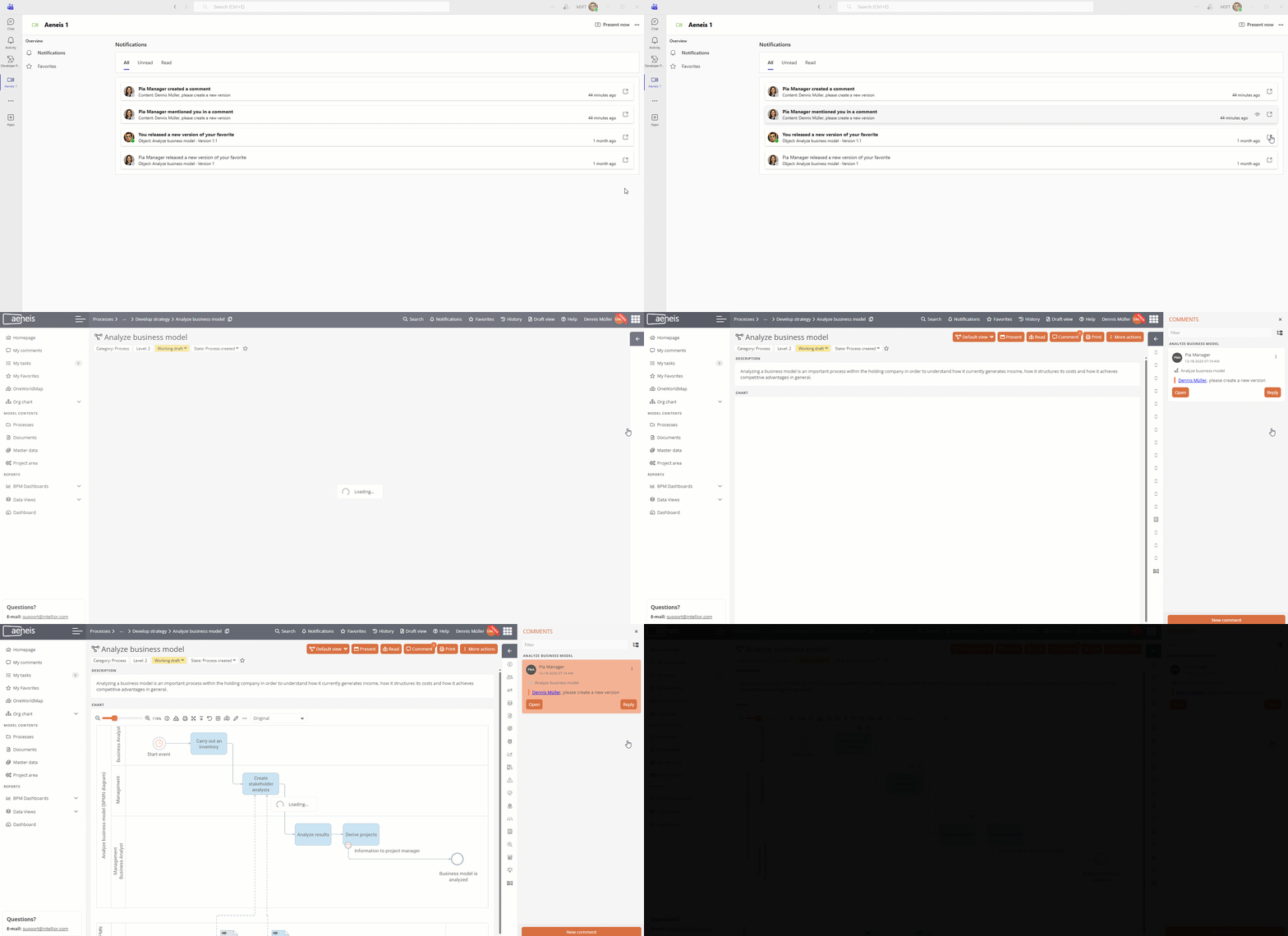
Example: If you click on in the card of a comment, you will be taken directly to the Portal in the drawer with the corresponding comment that Aeneis has highlighted for you.
See also: Further information on the notifications that Aeneis triggers in the Portal can be found under Notifications.
Mark notification as read
You can mark unread notifications as read by clicking on  . Both in Teams and in the Portal, the notification then lands in the area for read notifications in real time.
Delete read notification
You can delete read notifications in Teams by clicking on  . The notification is then also deleted in real time in the Portal.
Favorites
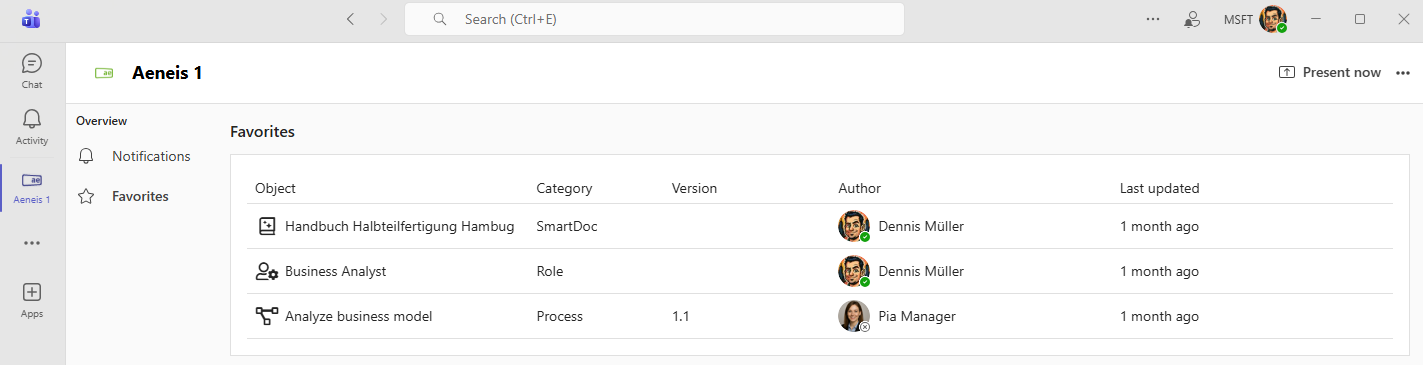
In addition, you can view your Aeneis favorites via a separate area of your Aeneis app with specific key data on the property. Changes to your favorites are synchronized immediately. Click on a favorite to go directly to the corresponding object in the Portal.
See also: For more information on favorites in Aeneis, see Add content to favorites.
Pin Aeneis to the sidebar
If Aeneis has not already been pinned to your Teams sidebar by your organization, you can pin the app manually.
See also: To find out how to pin Aeneis as an administrator for all users by default, see Pin Aeneis organization-wide.
Instructions:
-
Open Teams
-
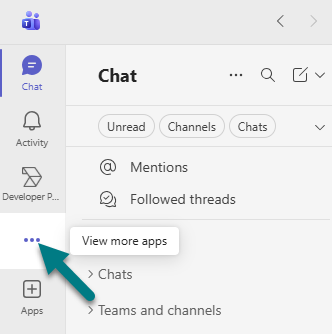
Click on View more apps in the sidebar:
-
Search for the Aeneis app for Teams
-
Click on Add in the app